Placing an order on the Rapid website and paying for your goods should be a quick, easy and secure process. See below for the range of ordering and payment options available to you.
If you do not already have a www.rapidonline.com web account you can still buy products from the website. An account will automatically be created for you when you order for the first time.
Selecting Products
View Basket
Delivery
Trade Counter Collection
Payment Details
Review Order
Confirmation
Saving a Basket
Payment options and VAT
Export Orders
Apply for a Business Account
Quick Order Form
Cut & Paste Order Form
Scheduled Orders
Quotation Requests
Back to Top
Select the product(s) and the quantities that you wish to purchase from our extensive product range. Clicking the ‘Buy’ or ‘Add’ buttons will place your goods in your shopping basket.
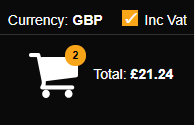
Click the “View/Edit” link in the basket indicator on the top right corner of every page. You will be able to view the contents of your basket, with stock and pricing information related to the selected products, and delivery charges based on the current value of your basket.

Back to Top
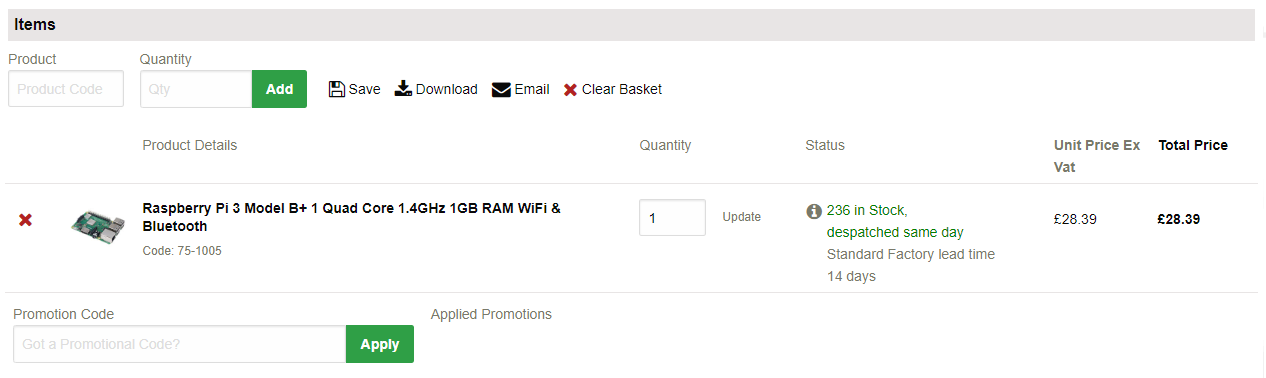
The View Basket page is the first stage of the checkout process. Here you can review the products you wish to buy. On this page, you can add items (by entering the product code and required quantity), remove items or adjust the quantities, continue shopping or proceed to the next stage.
If you have a promotional code or voucher to use, this can be entered in the promotional code box. Clicking ‘Add’ will advise if the code is valid for your order.
Select the Continue button at the bottom right of the page.

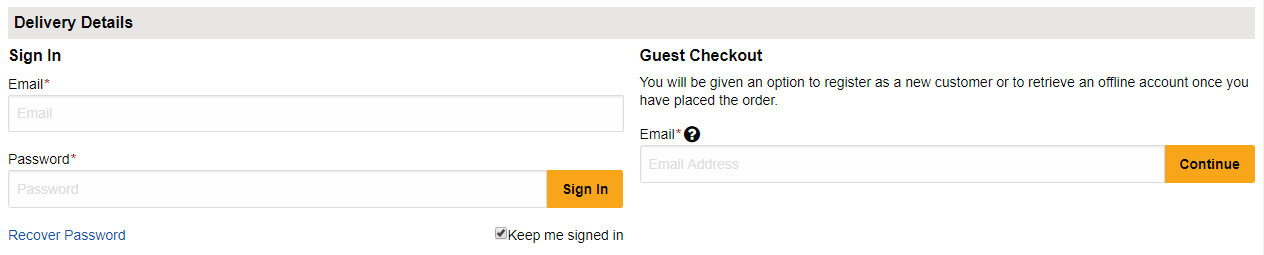
If you have already registered online, you will be prompted to enter your log-in details.
If you are making your first transaction on the website, you will need to enter your contact information, email address and create a password to proceed with your order.
If you are an existing offline Rapid customer, and you wish to activate your offline account for online ordering, you will be asked to enter your account number and billing address postcode. You will be prompted to create your log-in information so that your account can be activated for use on the website.

If you are already logged in, you can proceed directly to the next step - Delivery Details.
Back to Top
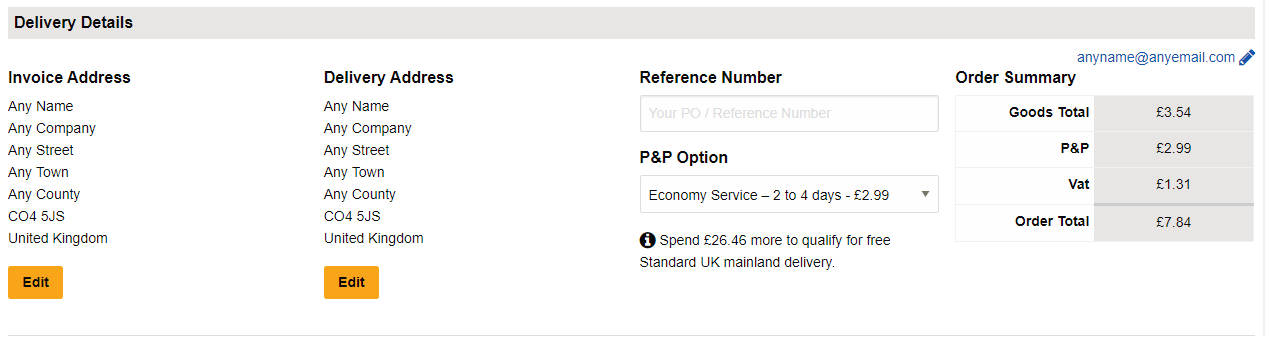
By default, your invoice address will be selected as the delivery address.
If you have alternative delivery addresses set up, use the Select this Address button to choose the address for delivery of your order. If the address you require is not shown, use the Add Address button to add a new delivery address to your account.
Please note: that if this is your first online order, or is within 30 days of your first online order, you will not be able to add an alternative delivery address. Your order can only be sent to your invoice address.
Select your delivery option – Standard UK Mainland, UK Mainland – Next Working Day, UK Mainland – Next Working Day before noon, or, if your order is over £5 (excluding VAT), Trade Counter Collection. Note: if you are an offshore or export customer, the available delivery options for you will be shown.
A field is available for customers to enter additional instructions for delivery, such as where to place items if you are not at home at the time of delivery.

Back to Top
Local customers have the option of selecting 'Trade Counter Collection'. This option saves the cost of delivery charges on orders under £35 (excl. VAT). However, the value of your order must exceed £5 (excl. VAT). Customers can collect their order from the Rapid Trade Counter. Your order will be ready for collection within one and a half hours if placed before 4.30pm Monday to Friday. Orders placed after this time will be available for collection after 9am the following day. On Saturdays orders must be placed before 2pm for same day collection.
Back to Top
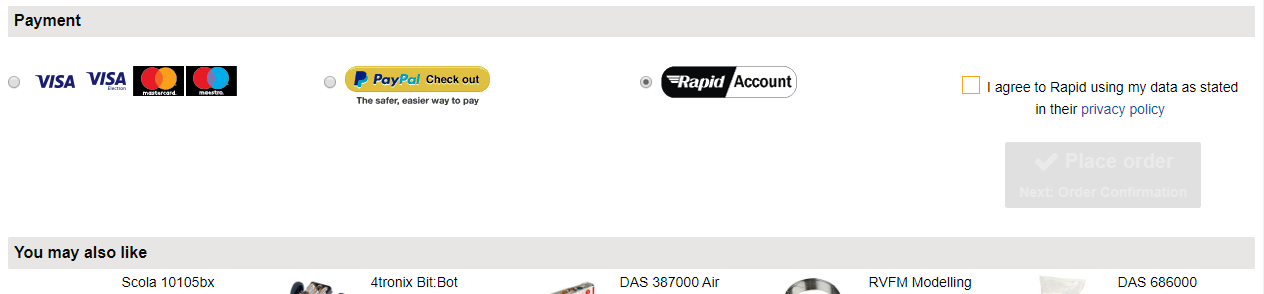
Clicking 'Continue' will take you to the Review Order screen. Here you can check that your order, delivery and payment details are correct before submitting your order, as well as adding a reference or a Purchase Order number. You need to tick the box confirming you have read the Rapid terms and conditions of sale.
Then select your method of payment. If you have a credit account with Rapid, you will be given two options – to pay by credit/debit card or on account. If you choose to pay on account, clicking the Continue button will submit your order.
If you select to pay by Credit/Debit card, click the Continue button to proceed to the Payment screen.

Back to Top
You will be asked to enter your card details, including the three digit security code on the signature strip on the back of your card.
Please note that we accept Visa, Visa Electron, Mastercard and Maestro cards only.
If you pay for your order by card, the amount debited from your account will include the total for any out of stock items or items on back order.

Back to Top
All credit or debit card payments on our site are subject to the Verified by Visa or MasterCard SecureCode 3D secure card verification procedure. This is an authentication process which adds to the security of your online transaction. You will be prompted to enter the password registered with your card for this scheme. Your payment will then be authorised by your payment provider. If all card details have been correctly entered and funds are available your order will be placed successfully.
Rapid takes credit card fraud extremely seriously. To protect our customers, we log each IP address relating to online credit card transactions as evidence, should it be required by law enforcement or government bodies.
Back to Top
A message will appear confirming that your order has been placed successfully and displaying your Rapid web order number (this is also displayed on your confirmation email, which will be sent to you upon submitting your order).
If you have ordered online for the first time, you will also be sent an email confirming your web account number and log-in details.
Back to Top
You can pay for your goods at Rapid using credit/debit cards or on account. We accept Visa, Visa Electron, Mastercard and Maestro cards only.
If you pay for your order by card, the amount debited from your account will include the total for any out of stock items.
Business customers can also apply for credit facilities – payment is due at the end of the month following that stated in the date of the invoice. Credit accounts are available at the strict discretion of Rapid Electronics.
An application form can be downloaded here
VAT (Value Added Tax) is charged on products sold by rapidonline.com in accordance with laws governed by the EU (European Union).
You can choose whether or not you wish to display prices on the rapidonline.com website inclusive or exclusive of VAT. You will be able to view the total amount of VAT charged before proceeding with your order.
If at the Review Order stage of the checkout your order includes VAT and this is incorrect, please contact us to have your account amended.
Currency Indicator. Rapid Electronics Ltd is a UK-based company trading in Pounds Sterling. Any other currency indicators are for illustration purposes only. Exchange rates used are as per HSBC exchange rate.
Back to Top
For more information about placing orders from outside the UK, click here
Back to Top
Apply for a Business Account
To apply for a credit account, please complete an application form and send this to Rapid for processing. An application form can be downloaded here
Back to Top
If you know the order code of the product that you wish to purchase, you can speed up the product selection process.
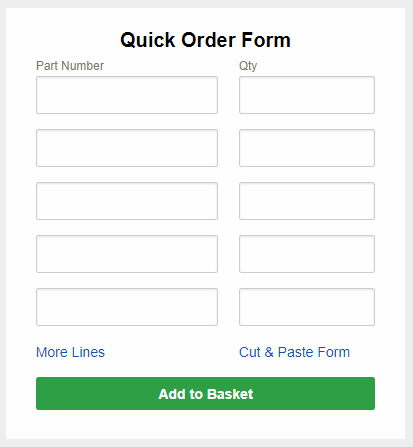
The Quick Order Form is available at the top right corner of the homepage. Type the Rapid order code and the quantity you require into the fields, and add them to your basket by clicking the Buy button. You can add 4, 8 or 16 lines or open the form in a new page with space to add up to 200 order codes. Stock availability can also be checked.

A shortcut can be found on the right hand navigation panel of the homepage, and can include up to 20 lines. Click the Buy button after entering the codes and quantities to be taken to the full page Quick Order Form.
Click here to go to the Quick Order form
Back to Top
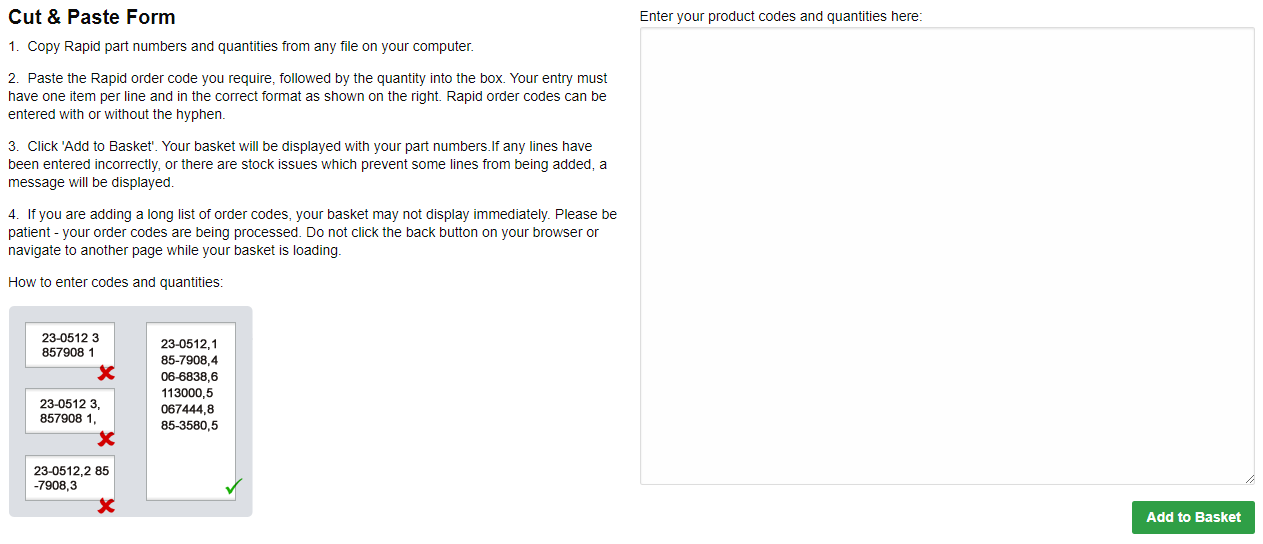
If you know the order codes and quantities that you would like to purchase, and want an even quicker way to buy, you can use the Cut and Paste order form. The link is available at the bottom of the Quick Order Form panel on the homepage.

Simply copy and paste order codes and quantities from any file on your computer. Please ensure that:
- Product codes and quantities are separated with a comma (,)
- Product codes and quantities are added one per line
- There are no blank lines in the list of product codes
- There are no spaces
Once you have pasted your required products into the box, click the Buy button to add the valid codes to your basket.
Click here to go to the Cut and Paste form
Back to Top
Scheduled Orders - available to statement account holders
Scheduling orders with Rapid can save you time and money. By placing a scheduled order you can select the products you require, at a fixed price, and specify the dates on which you’d like them delivered and invoiced.
Once the order is placed, the stock will be booked to you (if there are problems with stock we will inform you on receipt of your order). The price you are quoted will be fixed for the life of the schedule; barring extreme fluctuations in supplier price/exchange rates.
Once logged in to your statement account on the website, click the ‘Place a Scheduled Order’ link in the footer or the ‘Scheduled Orders’ option in ‘My Account’. Simply choose the frequency of delivery, the number of drops you require, the delivery address and delivery dates. Then add the product codes (Rapid or manufacturer’s codes) quantities for each drop to the schedule.

Once the scheduled order is placed in the basket, you will receive an order acknowledgement via email. Please check this order confirmation carefully and report any errors to us immediately.
Please note: Once placed, cancellation is not accepted unless agreed in writing by Rapid. Amendments will not be made to a scheduled order unless they are requested in writing; you will then receive an amended order acknowledgement.
Back to Top
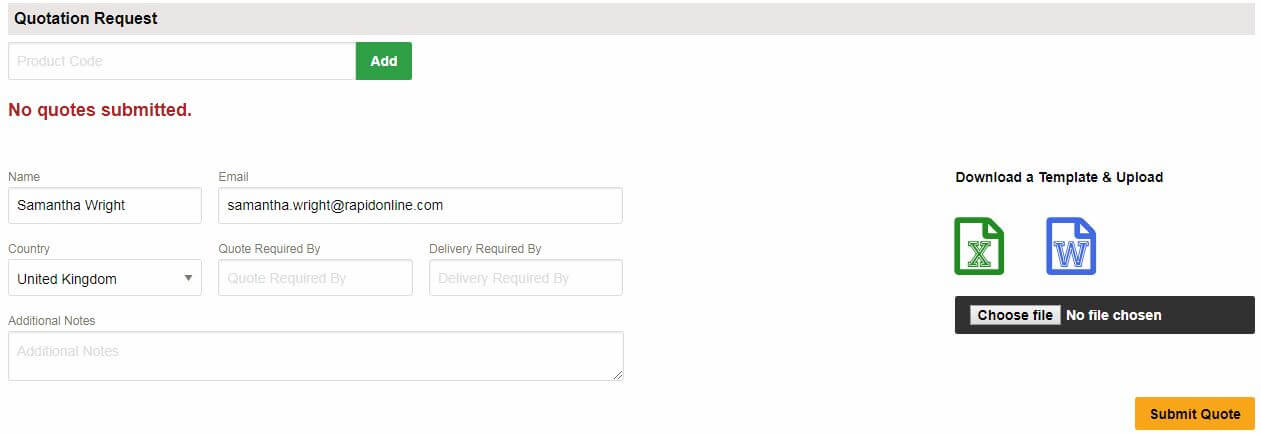
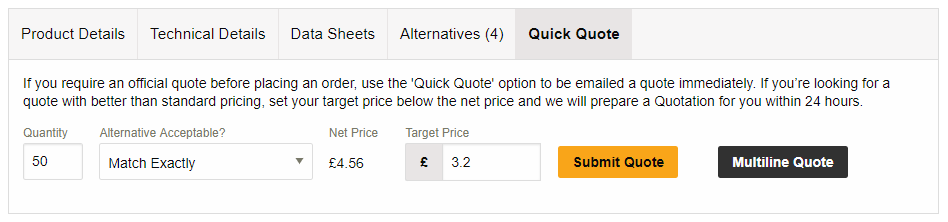
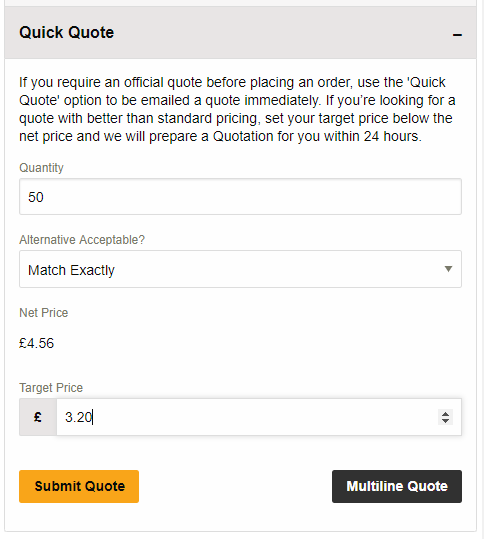
If you have a target price for us to match, or if the order quantity you require of a particular product is higher than our end price break, you can request a quotation from Rapid.
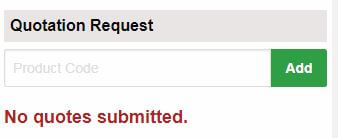
To set up your quote, click the Quotation Request link at the bottom of the page (when logged in) or the ‘Create Quote Request’ option in 'My Account'.

Enter the appropriate code into the table, set a target price, a quantity and whether you require an exact match or would accept a suitable alternative product at the target price.
Once you’ve added all your order codes to the quote request form, reviewed the details and made any necessary amendments or additions, you will then need to enter your personal details. At this stage you can enter a quote reference for your records (this is optional) and submit your quote.
A member of our sales staff will action your quote giving you the best possible price available for the items you’ve requested. Your quotation will be available to edit until the status is updated to 'processing'. You will receive an email once this happens and again once the quotation request is complete.
You will then be sent a message informing you that your quote is ready. A quote is valid for 30 days from the date of processing. You can then add products at the quoted price to your basket.
Once a quote has expired, it will show as an ‘expired quote’. However, the quote can be resubmitted at a later date if necessary or deleted if no longer required.
Your full quote history can be accessed via the ‘Quote Options’ area of ‘My Account’, where the current status of all live quotes and a record of all expired quotes can be viewed.
Click here to go to the Quotation Request page